Invite participants and assign permissions

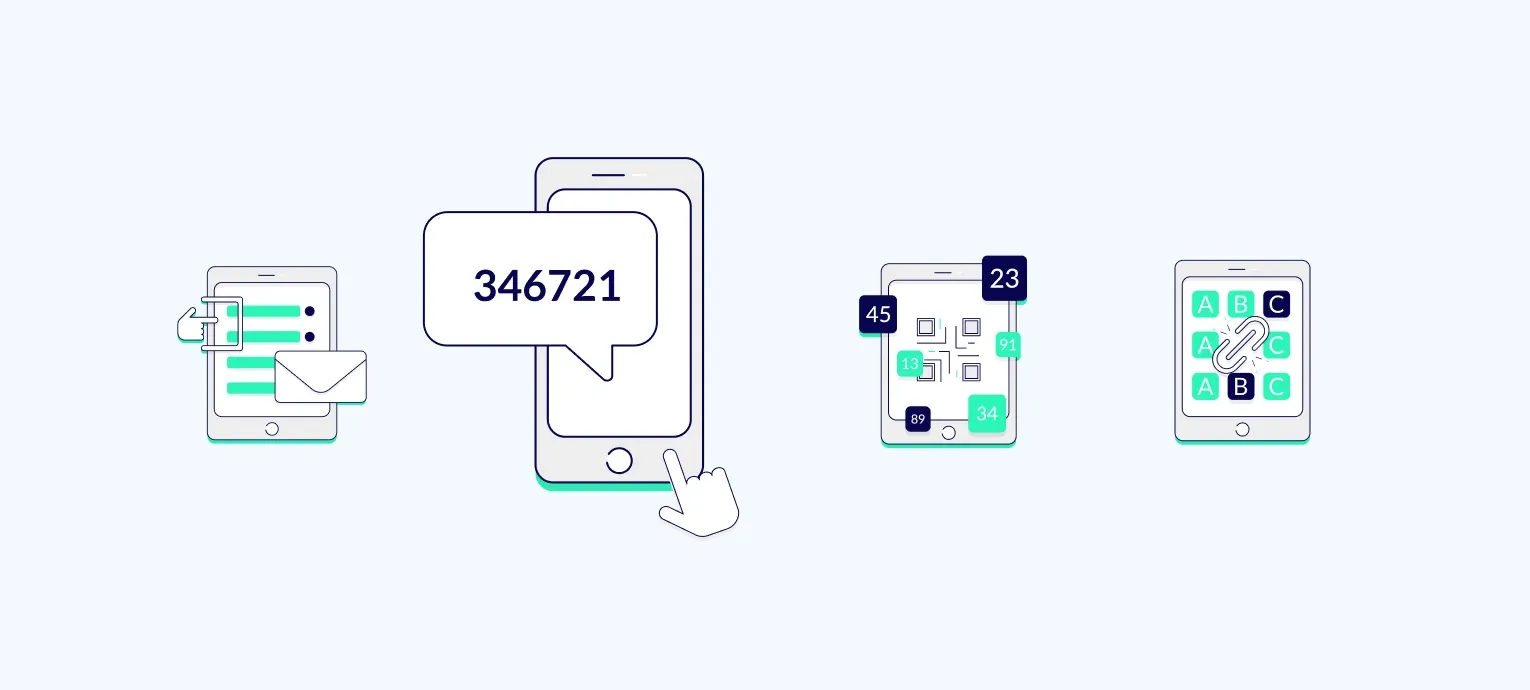
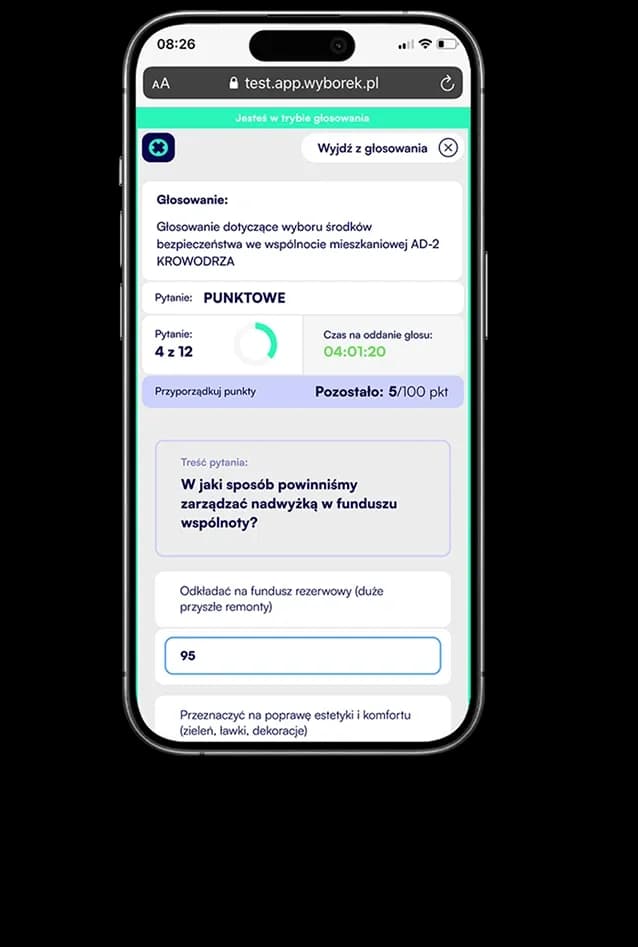
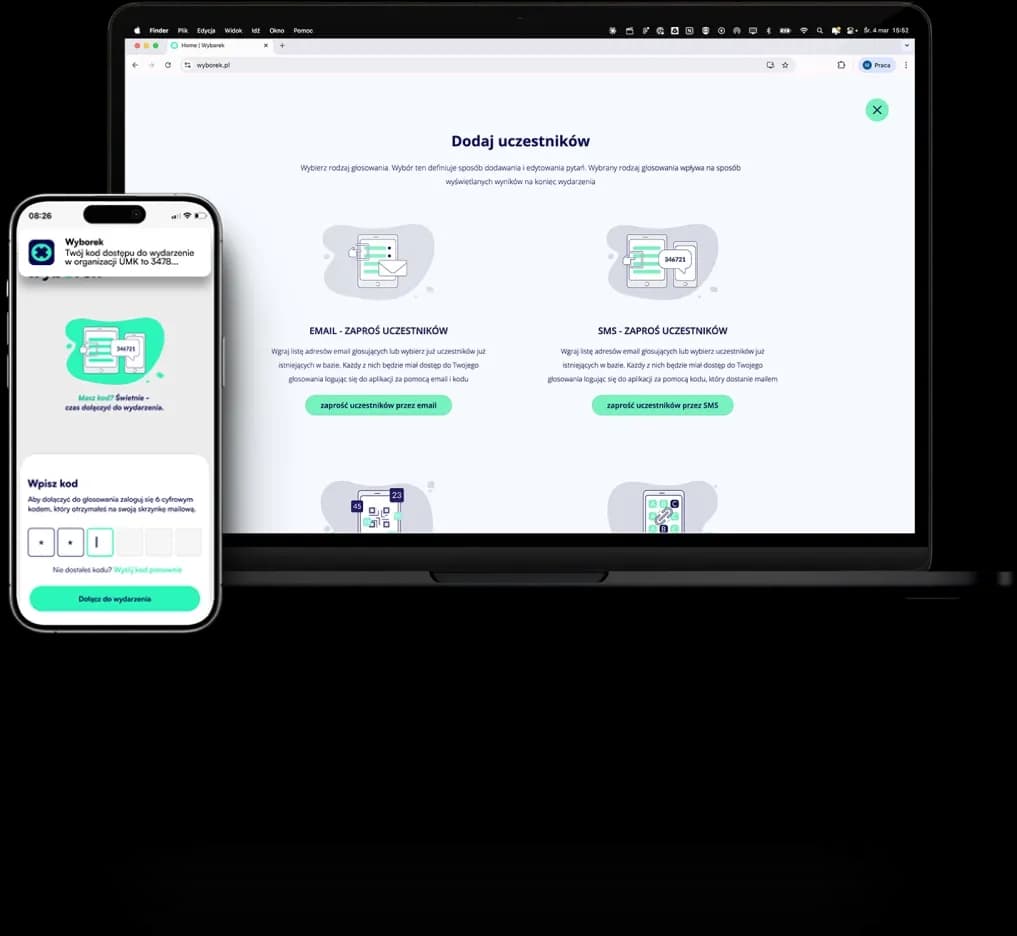
Choose the invitation method that fits the nature of your event: email, SMS, unique codes or a public link. Participants join, and you keep full control over who takes part in the vote.

Image
Image
Image

Email Invitations

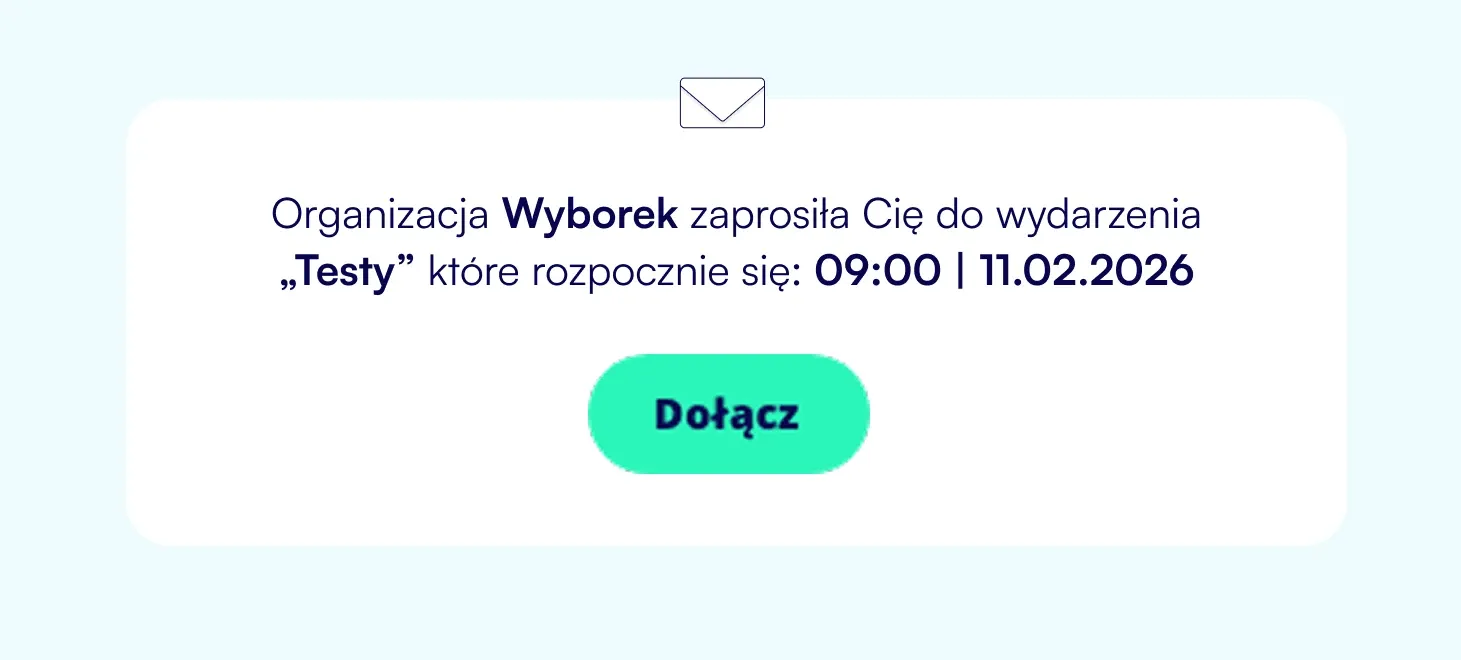
Upload a list of voters' email addresses or select participants already stored in your database. Each person gets access to the voting by signing in with their email and code. Typically used by management boards and supervisory boards for formal meetings with a named participant list.

Image

SMS Invitations

Upload a list of voters' phone numbers or select participants already stored in your database. Each person receives an SMS with a one-time authorization code. Commonly used for general assemblies and residential communities.

Image

Unique Access Codes

Provide the number of participants and we will generate ready-to-use access codes. You can print them and hand them out in the room before voting starts.

Image

Public Access

No list, no authorization - anyone with the link can join the voting. Perfect for open consultations and surveys.

Image
Configuration

Choose the participant authorization method

After adding an event, the administrator chooses how participants will be invited. Email, SMS, unique codes or public access, depending on the nature of the event and your organization.

Image
Bulk adding

Add all participants at once

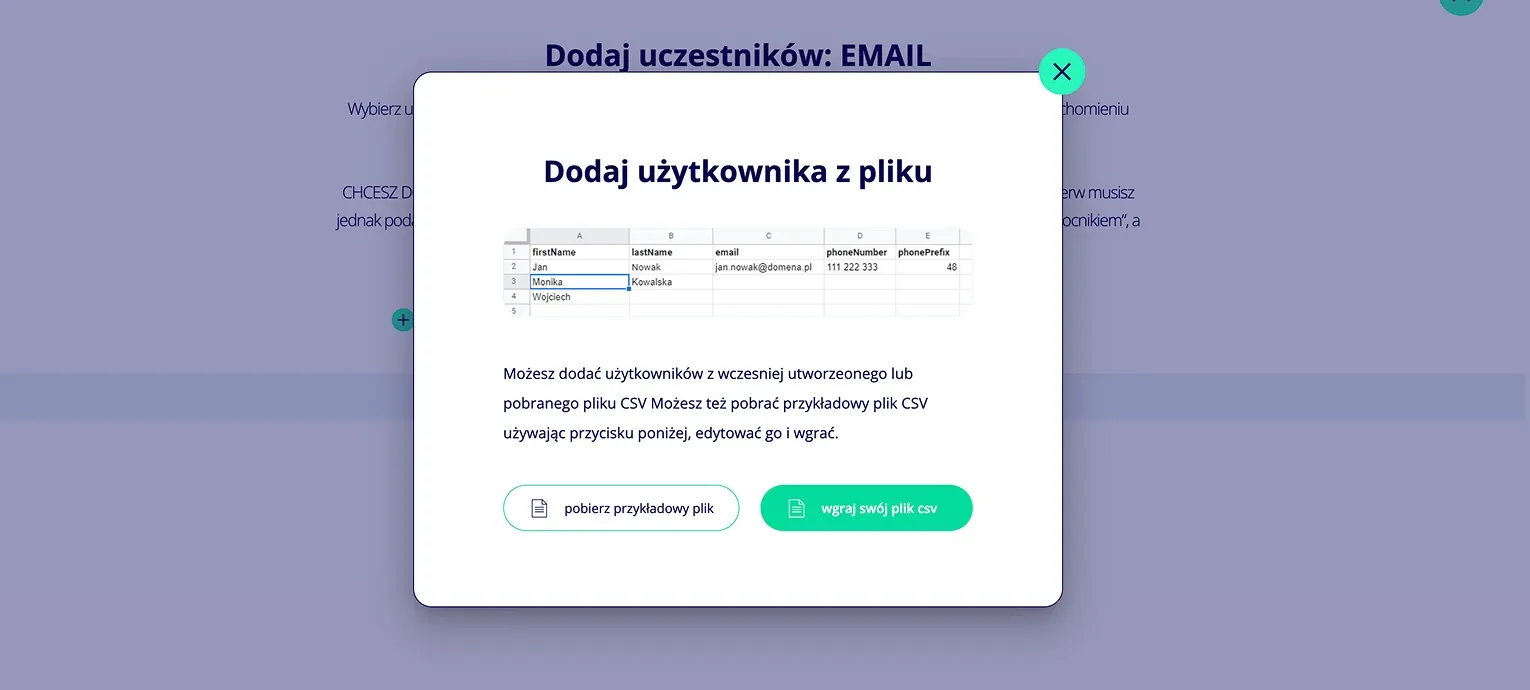
Prepare a CSV file with participants first and last names, email addresses and phone numbers. The import file is available in the CRM panel. Do not waste time adding people one by one. All invited people can be assigned to participant groups, and once added they stay in your database.

Image
Message template

Personalize invitations

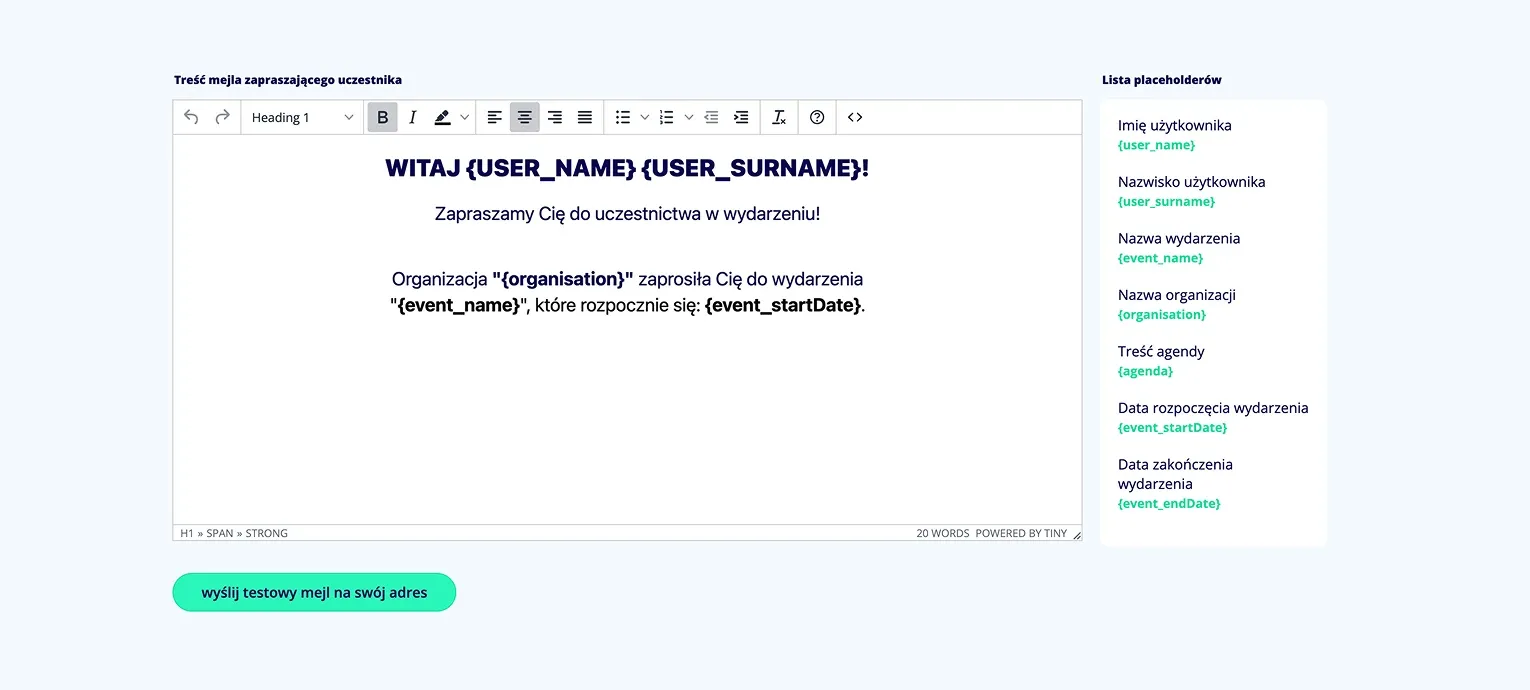
After the event is launched, invited participants receive an email. You can freely configure its content by editing it in the CRM panel. You can prepare individual messages by choosing a placeholder from the list. Check the message appearance by sending a test email.

Image
Proxies

Voting on behalf of another participant

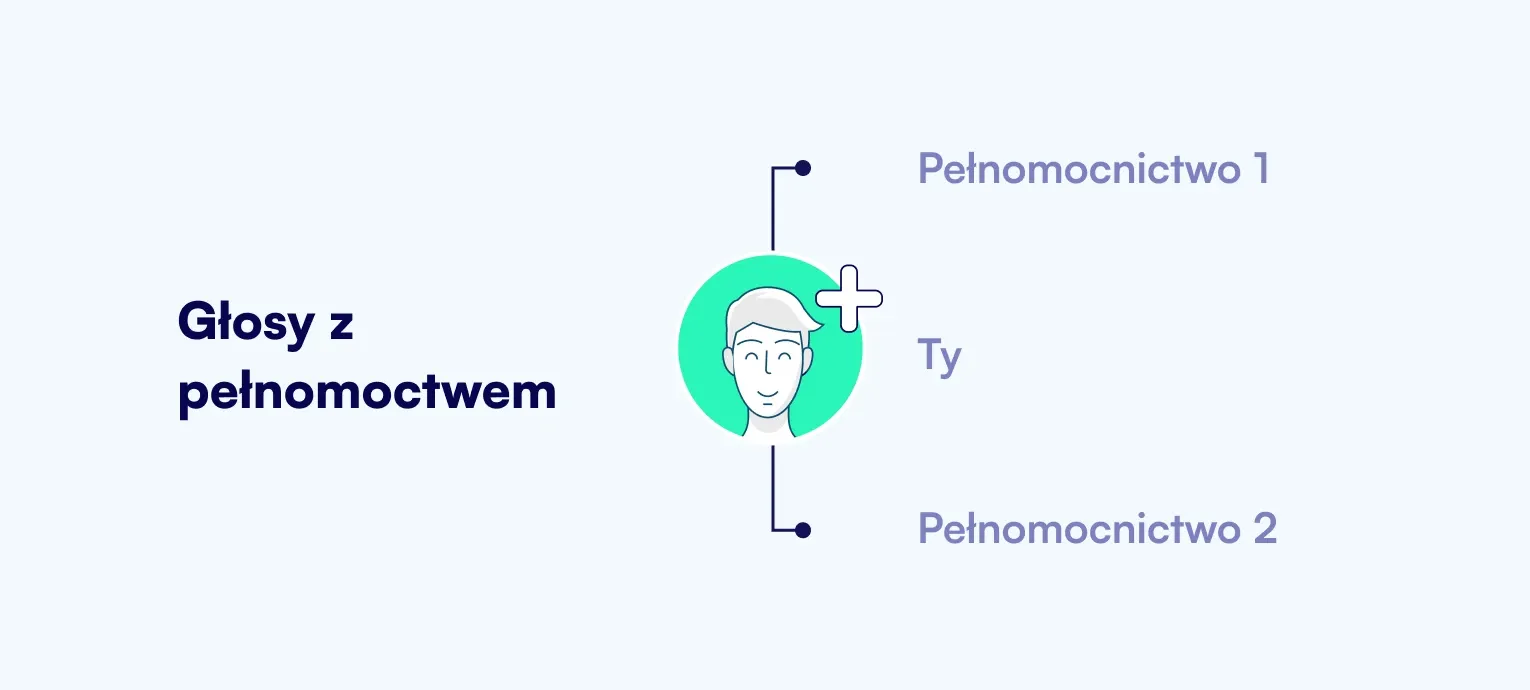
In Wyborek, any person can vote on behalf of another participant. First, enter the details of the participant who will act as the proxy. Then select the option that the participant is a proxy and provide the details of the people they will represent.

Image
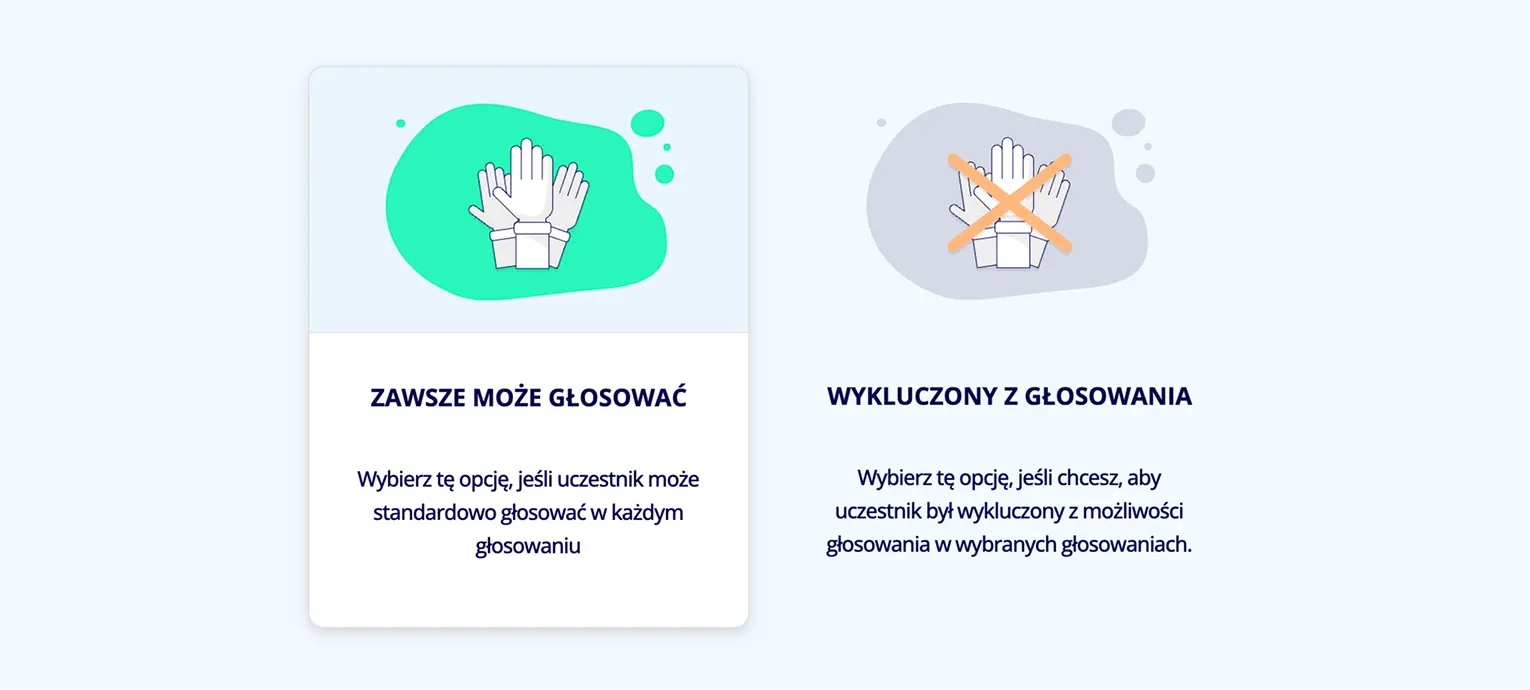
Voting exclusion

Control access to individual votes

For every added participant, the administrator can limit the ability to vote in specific votes by selecting them from a drop-down list. By default, each participant can vote in every vote.

Image
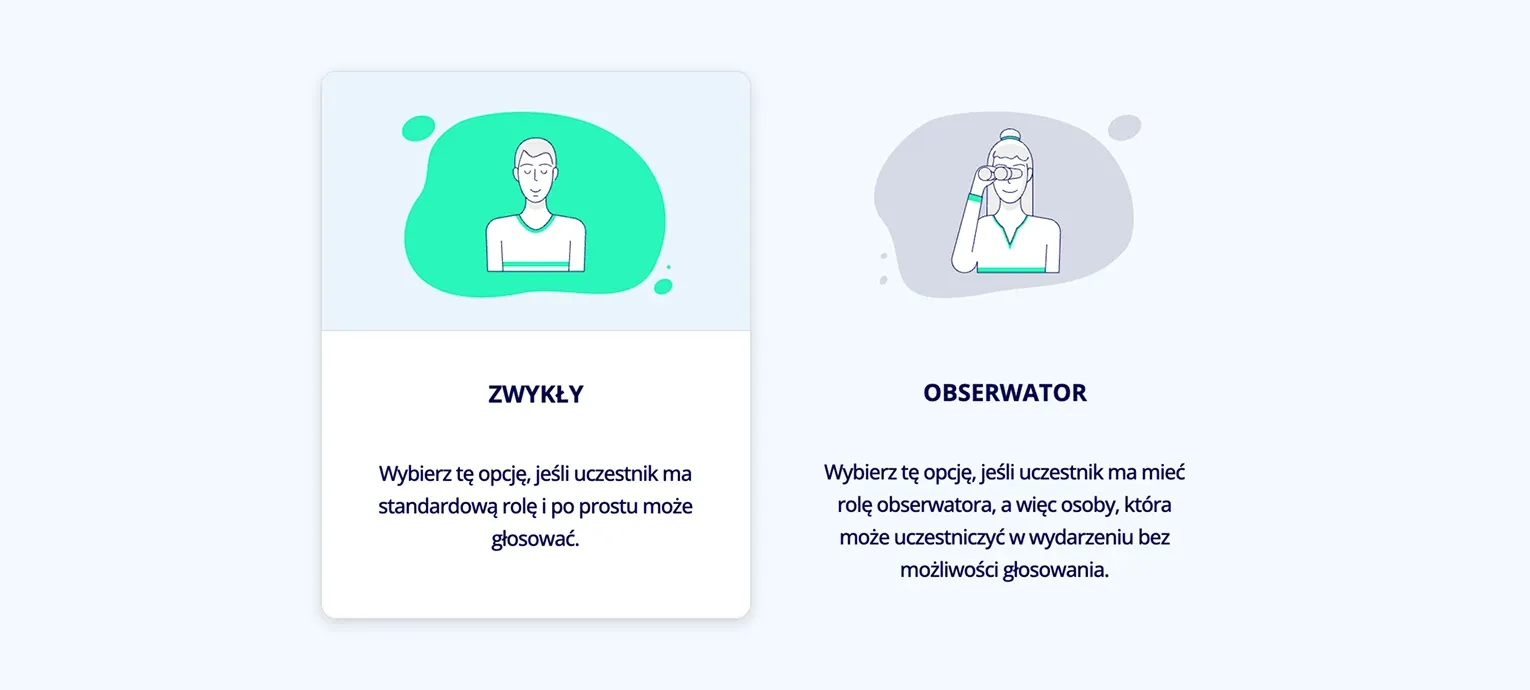
Roles

Define participant permissions

The event administrator can decide the participant role in the event. A regular participant has a standard role and can simply vote in available votes. An observer only participates in the event, without the ability to vote.

Image
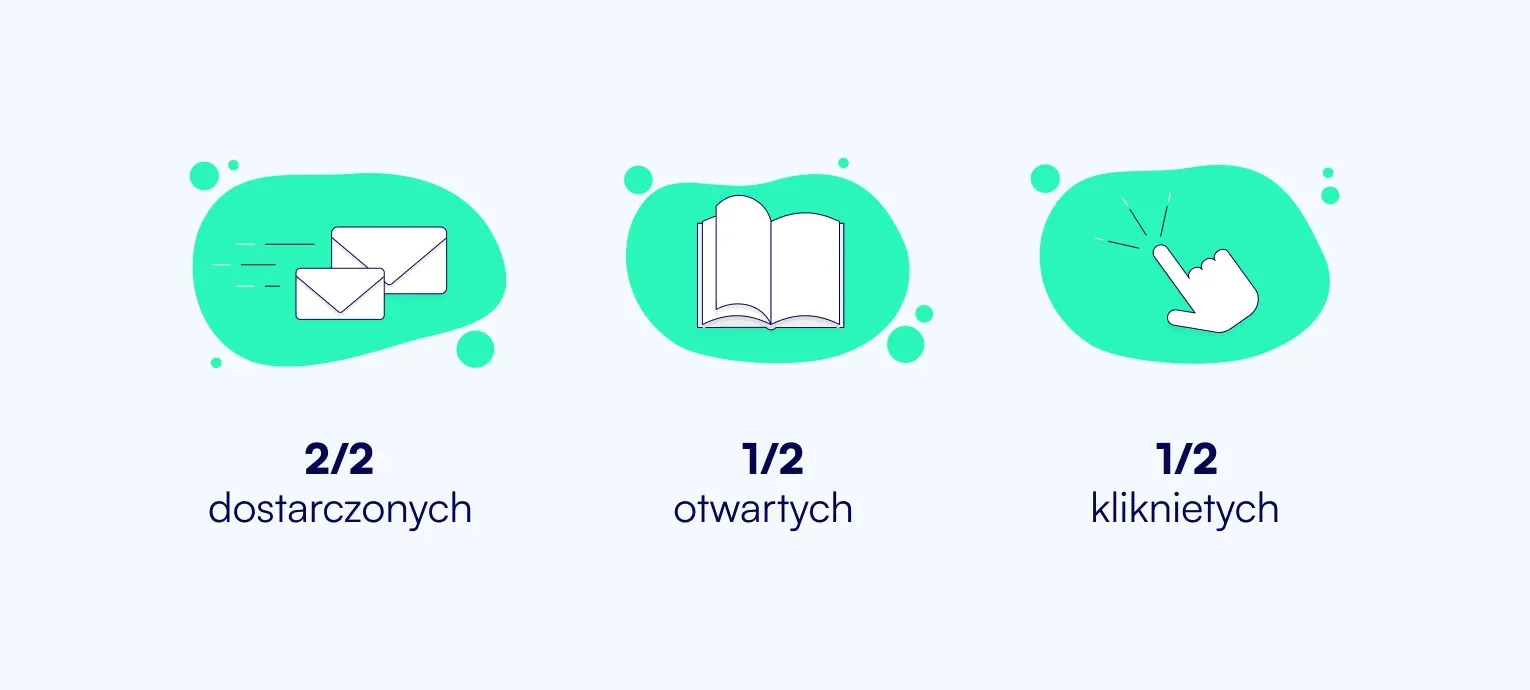
Invitation statuses

Track whether participants received the invitation

For every sent invitation, you can see in real time whether the message was delivered, opened and whether the participant clicked the join link. You know exactly who is ready to vote and who needs a reminder.

Image
Image
10
9
5
3
1

Create your first events

Test Wyborek with

2 free events